Required Equipment and
Environment for Online Classes
This guide provides instructions on how to join our GLOBIS online classes.
01 Prepare all necessary items for your online class
-
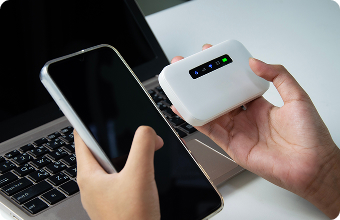
Computer and with Internet Connection
-

Earphones with a microphone
*Headsets are also acceptable
-
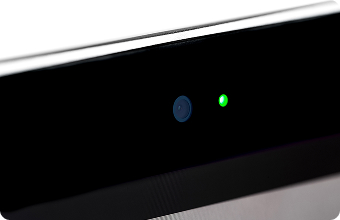
Web camera
*Built-in cameras are also acceptable
02 Set up the learning environment
-
Click here for a connection test
*Clicking above link will direct you to the Zoom connection test page.
*The Zoom application must be installed for all first-time connection. -
Install the Zoom application
-
Setup will take approximately 5 minutes.
*The learning environment (Zoom) is available free of charge.
Recommended system requirements
Recommended system requirements for PC (Windows, Mac).
GLOBIS online classes use Zoom as the learning environment .
Please ensure a strong internet connection, computer, web camera, and audio equipment are in working condition.
| Internet Environment | Wired LAN or Wireless (3G, 4G, or LTE) Please refer to this page for required bandwidth. |
|---|---|
| Computer | Please prepare your device after checking the latest information on
this page *Recommended OS environments for Windows and Mac are subject to change without notice. |
| Web Camera | Built-in camera or USB plug-in camera. |
| Audio Equipment | Earphones with a microphone. |
| Learning Environment | Zoom (Application) *Please update to the latest version. *Refer to this page for version details and download instructions. |
*Please log in to Zoom using only one device per person.
Using two or more devices (e.g., for separate audio and video) may disrupt the class or prevent your attendance from being recorded correctly.
■Important Notes
- GLOBIS is unable to provide technical support regarding login or IT related issues In the event of technical difficulties, students are responsible to resolve them independently.
- If a student is unable to join a class due to inadequate setup, they will be marked as absent.
- An unstable connection will hinder your learning experience. We strongly request that you confirm the necessary learning environment (Zoom) as soon as possible.
- *While it is possible to join via tablet or smartphone, required functionality may be limited (e.g. File-sharing during class).
(Please check this page for tablet/smartphone system requirements.)
*Video, audio, and overall performance may differ if joined from a web browser (such as Google Chrome) instead of Zoom application. Screen layouts may also differ.
よくある質問